15 Interactive Presentation Ideas to Engage Clients Before, During and After the Meeting
Interactive presentations don't have to begin and end with polls and quizzes. Here are 15 ways to let clients explore, choose, participate and keep the conversation going after the meeting ends.
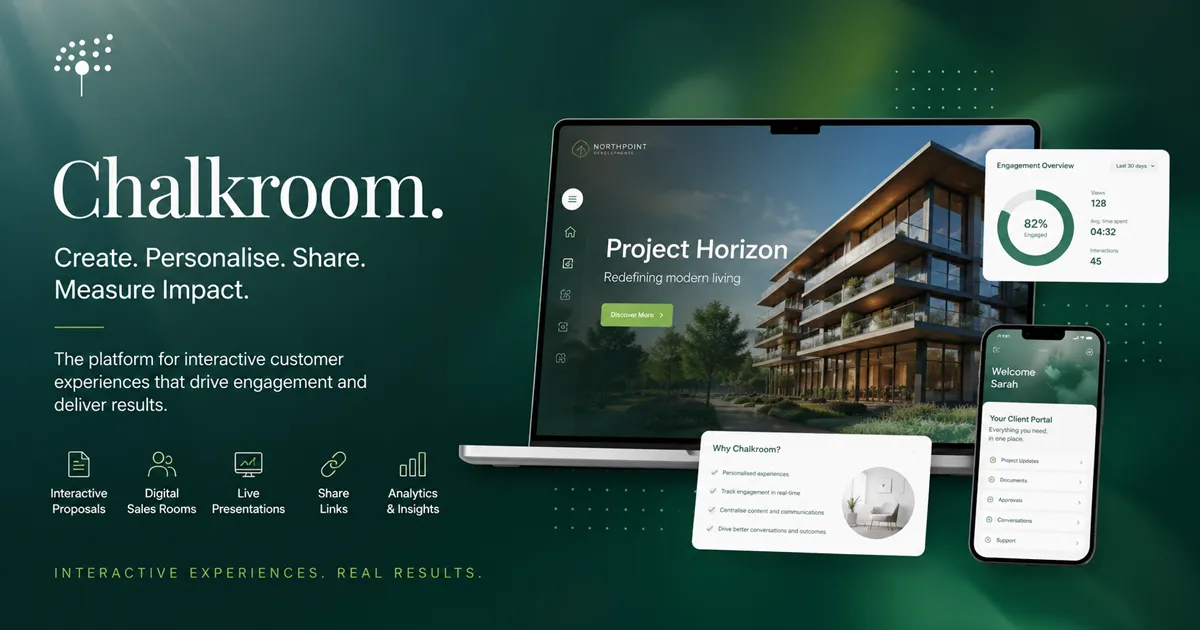
A genuinely interactive presentation can do much more. Allowing audiences to explore a space, rotate a product, choose which content to view, ask a question in context and continue engaging after the meeting has ended.
It can also help the presenter understand what happened next.
An interactive presentation gives its audience something meaningful to explore, choose, respond to or act on.
This guide explores 15 interactive presentation ideas for sales teams, professional service teams, agencies, architects, property professionals, consultants and other businesses presenting complex ideas to clients.
What makes a presentation interactive?
A presentation is interactive when the audience is no longer limited to watching a fixed sequence of slides.
Interactivity can happen in four ways.
The audience can explore
Viewers can move around a virtual space, rotate a model, open additional information or examine a visual in more detail.
The audience can choose
They can select the most relevant route through the content instead of being forced through a rigid slide order.
The audience can participate
They can ask questions, vote, contribute ideas or respond to the presenter in real time.
The experience can continue
The presentation remains available after the meeting, allowing clients to revisit content, share it with colleagues and continue the conversation.
The strongest interactive presentations often combine all four.
1. Add a 360° tour or virtual walkthrough
A photograph can show what a space looks like. A 360° tour can help the viewer understand what it feels like to move through it.
Instead of presenting a sequence of static images, invite the audience to look around, explore different viewpoints and investigate areas that interest them.
This can be especially effective when presenting:
- Property developments
- Hotels and hospitality spaces
- Office and workplace designs
- Retail environments
- Exhibition stands
- Event venues
- Manufacturing facilities
- Architecture and interior design proposals
A property developer, for example, could take prospective buyers from an exterior view into the entrance, reception, shared spaces and individual units. An architect could use the same approach to explain how different areas connect.
Keep the experience purposeful. Add a small number of clearly labelled navigation points rather than filling the tour with unnecessary hotspots.
Practical tip: Introduce the tour with one clear task, such as: “Explore the space and identify which layout best suits your team.”
2. Let viewers explore an interactive 3D model
Some ideas are difficult to communicate through flat images.
An interactive 3D model allows the audience to rotate, zoom in on and examine an object or environment from different angles. It gives viewers more control over what they see and helps them understand form, scale and spatial relationships.
Interactive 3D presentations can work particularly well for:
- Architecture and construction
- Property developments
- Product design
- Engineering
- Manufacturing
- Medical devices
- Furniture and interiors
- Complex technical systems
Rather than selecting one fixed camera angle, the presenter can let the client investigate the model while discussing particular details.
This can also work after the meeting. A stakeholder who was not present can open the presentation and explore the same model independently.
Practical tip: Do not rely on the model to explain itself. Use short labels or supporting text to draw attention to the details that matter commercially.
3. Embed video where it adds context
Video is often treated as a separate asset: something hosted elsewhere and sent to the client as another link.
Embedding it directly within the presentation creates a more connected experience. The viewer encounters the video at the point where it supports the story, without needing to leave the presentation.
Useful examples include:
- A short product demonstration
- A customer testimonial
- A design walkthrough
- A founder introduction
- A manufacturing process
- A before-and-after comparison
- A technical explanation
- An animation showing how a service works
Short, focused videos usually work better than long corporate films. Each video should have a clear purpose and answer a specific question.
For example, instead of embedding a five-minute company overview, add a 30-second demonstration immediately after introducing the problem your product solves.
Practical tip: Give the viewer a reason to press play. A title such as “See how the process works in 30 seconds” is more effective than “Watch our video”.
4. Animate facts and figures
Large amounts of data can overwhelm an audience when everything appears at once.
Animation can help by introducing information gradually, showing how a figure changes or drawing attention to one comparison at a time.
You might use animation to:
- Reveal the stages in a process
- Compare a current and proposed approach
- Show growth over time
- Demonstrate a change in cost
- Explain the components of a total
- Bring a diagram to life
- Highlight a key commercial outcome
The goal is not to make the presentation look busy. It is to control the sequence in which information is understood.
A static chart containing ten data points asks the audience to decide where to look. An animated chart can guide them through the two or three points that support the argument.
Practical tip: Animate the meaning, not the decoration. Movement should help explain the information rather than distract from it.
5. Add interactive maps, plans and hotspots
Maps, site plans and detailed diagrams often contain more information than can be explained comfortably on one slide.
Interactive hotspots allow viewers to select the area that interests them and open relevant content. For example:
- A property presentation could reveal local transport links and amenities.
- A development plan could explain different buildings or phases.
- A logistics proposal could show distribution routes.
- A workplace presentation could compare floors, zones or departments.
- A product diagram could reveal different components.
- A consultation document could organise information by location.
This approach keeps the main visual clear while allowing additional detail to sit underneath it.
Practical tip: Use descriptive hotspot labels. “Transport connections” is more useful than “Click here”.
6. Let viewers open supporting information when they need it
One reason presentations become overcrowded is that the presenter tries to answer every possible question in the main narrative.
Interactive presentations can use layers of information instead.
The central story remains concise, while interested viewers can open:
- Supporting evidence
- Technical specifications
- Case studies
- Detailed methodology
- Additional charts
- Frequently asked questions
- Team biographies
- Terms and assumptions
- Related documents
This is particularly useful when a presentation is being viewed by several types of stakeholder.
A managing director may want the strategic argument. A finance lead may want the commercial assumptions. A technical stakeholder may need implementation detail.
They do not all have to consume the same information in the same order.
Practical tip: Treat additional content as optional depth, not a hiding place for information that is essential to the decision.
7. Personalise the presentation for each audience
Personalisation can make a presentation feel less like a generic sales deck and more like the beginning of a relevant conversation.
This does not necessarily mean rebuilding the whole presentation for every recipient. Small changes can have a significant effect.
You could personalise:
- The opening message
- The recipient's name and company
- Sector-specific examples
- Relevant case studies
- Product or service recommendations
- Commercial scenarios
- Images and terminology
- The proposed next step
You can also adapt the level of detail for different stakeholders.
An executive version might lead with business outcomes. A technical version could provide more detail about implementation. A procurement version might focus on process, risk and commercial structure.
Practical tip: Personalise the substance, not just the cover page. Adding a company logo to an otherwise generic deck is not meaningful personalisation.
8. Let the audience choose the route
Traditional presentations normally follow a fixed sequence. That works when the presenter knows exactly what the audience needs, but client conversations are not always predictable.
An interactive presentation can offer several routes. For example, a viewer might be asked: “What would you like to explore first?”
- The commercial case
- How the solution works
- Relevant client examples
- Implementation and onboarding
This can make live meetings feel more responsive. It can also make a self-guided presentation easier to navigate because the viewer can go directly to the information that matters to them.
Audience-led navigation is especially useful when:
- Several stakeholders have different priorities
- The presentation covers multiple products or services
- The audience already understands part of the story
- Time is limited
- The presentation will also be viewed independently
The presenter remains in control of the overall narrative, but the audience has greater influence over its direction.
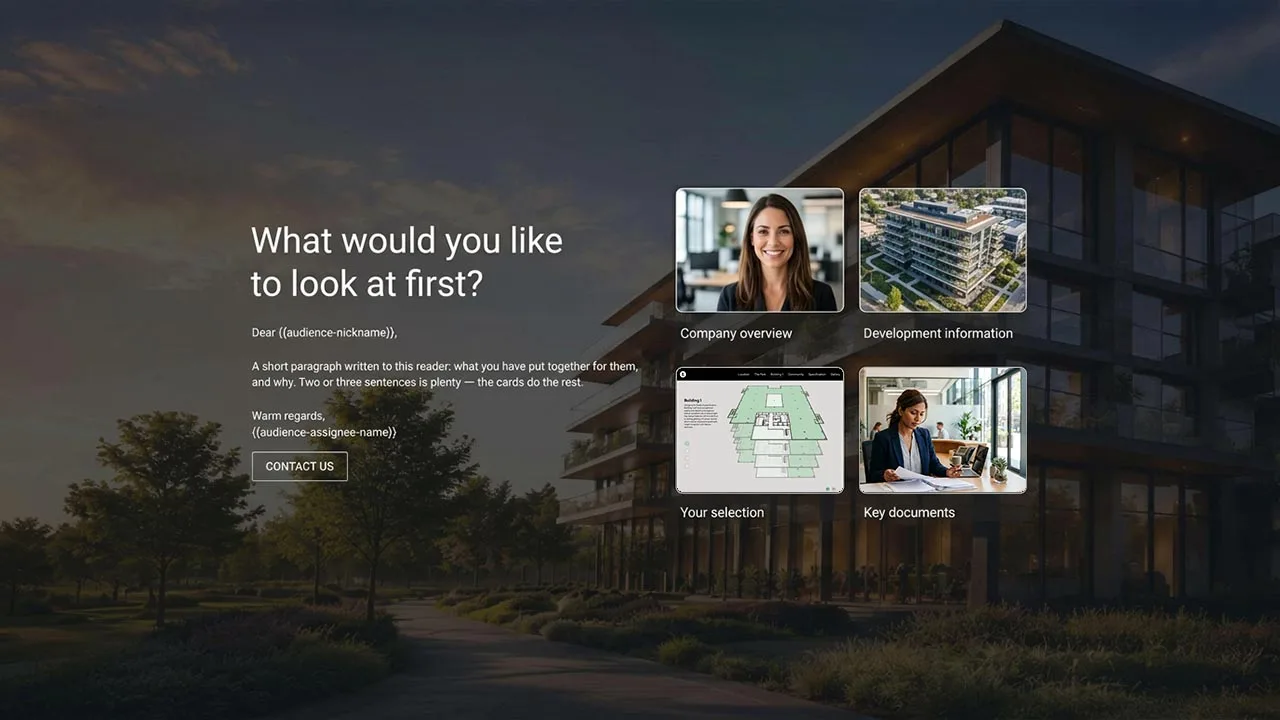
Practical tip: Offer a small number of meaningful routes. Too many choices can make the experience feel like a complicated website rather than a clear presentation.
9. Add a calculator or configurator
Calculators and configurators turn abstract claims into something more specific.
Instead of saying that a service could save time or reduce costs, let the viewer enter relevant information and see an indicative result.
Possible examples include:
- Return-on-investment calculators
- Cost-saving estimators
- Capacity calculators
- Pricing tools
- Product configurators
- Package selectors
- Space-planning tools
- Scenario comparisons
A consultancy could let a prospect estimate the cost of an inefficient process. A property business could compare unit types. A software company could show how pricing changes according to team size.
Calculators need to be transparent. Explain the assumptions behind the result and avoid presenting an estimate as a guaranteed outcome.
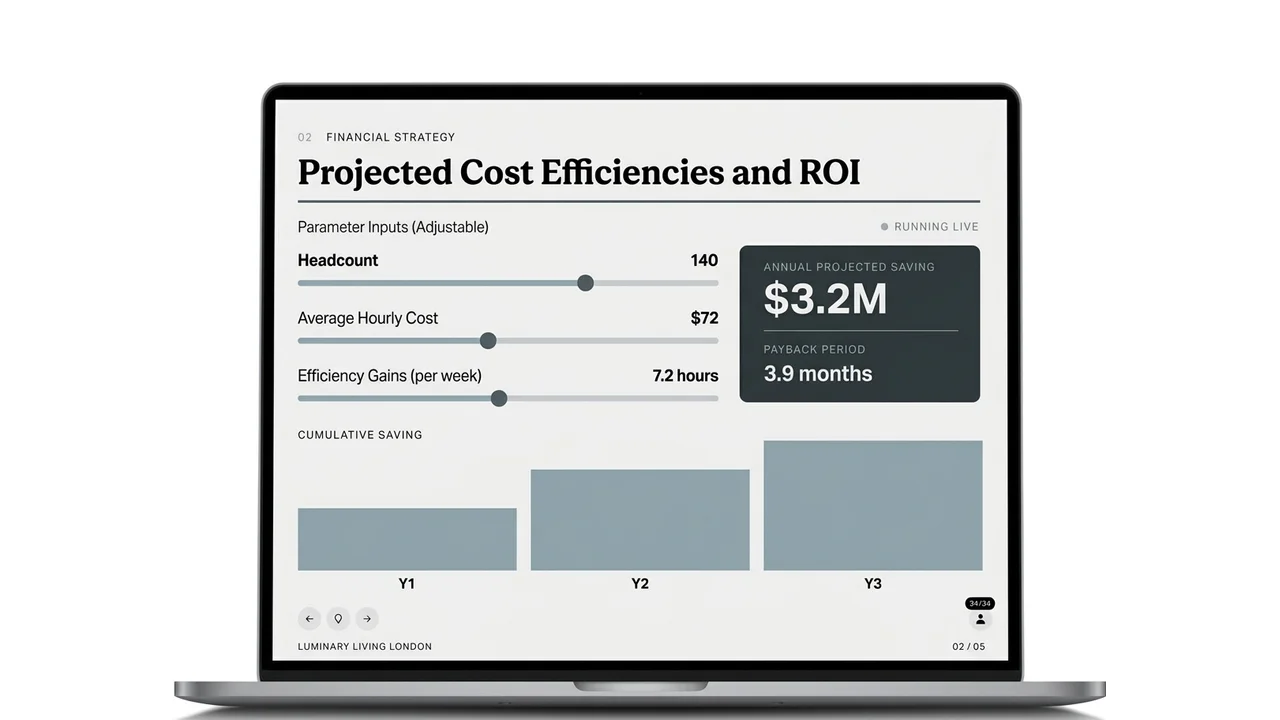
Practical tip: Ask only for information that genuinely affects the result. A long form will reduce engagement.
10. Allow direct messaging within the presentation
Questions often arise while someone is viewing a specific page, figure or proposal item.
If the only way to respond is by opening a separate email, the question can lose its context. The recipient may need to describe what they were looking at, while the sender has to work out which version or section they mean.
Direct messaging within the presentation keeps the conversation connected to the content. A viewer might ask:
- Does this price include implementation?
- Can this layout be adapted?
- Do you have a relevant case study?
- What assumptions support this forecast?
- Can you provide more detail on this feature?
This is particularly valuable for presentations viewed after a meeting, when the presenter is no longer there to answer questions immediately.
It can also create a more natural follow-up process. Instead of sending a generic “Just checking in” email, the conversation begins with a specific point of interest.
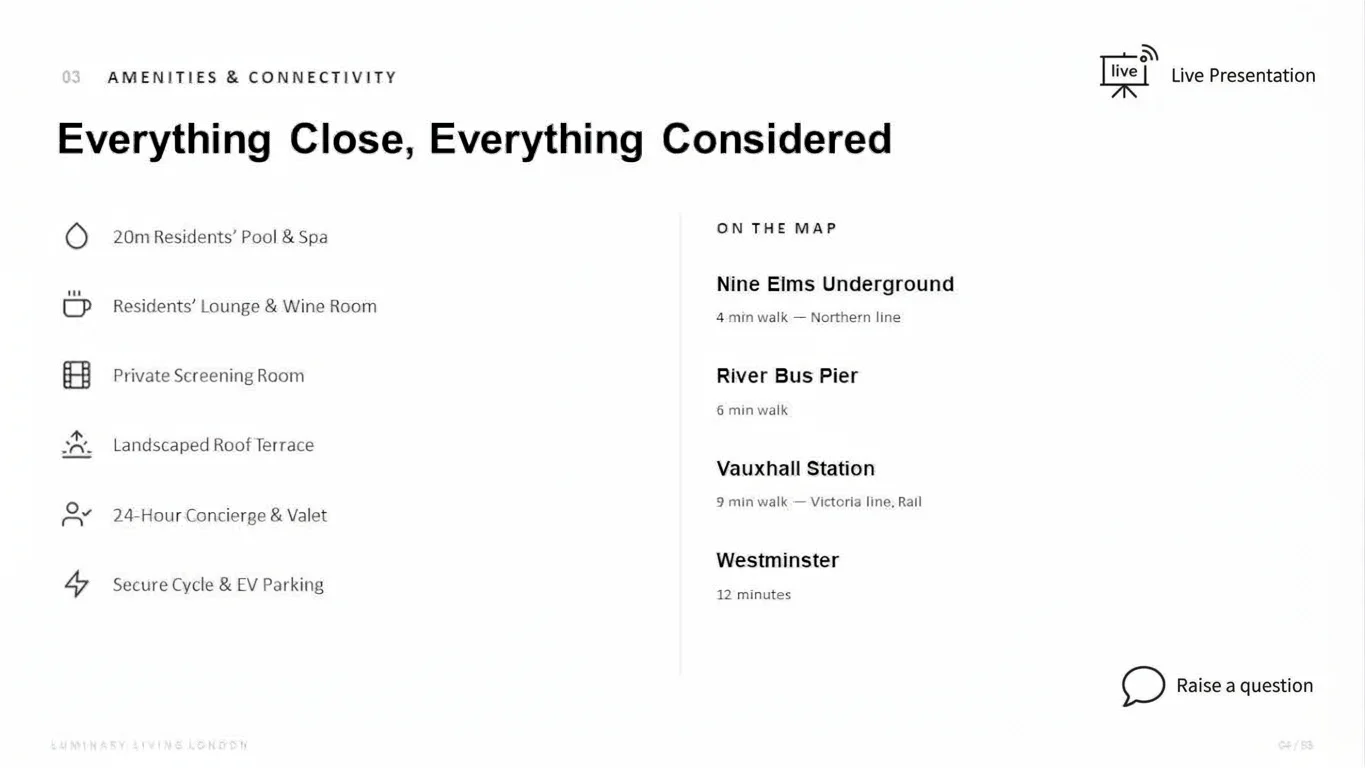
Practical tip: Make it clear who receives the message and how quickly the viewer can expect a response.
11. Present live on each viewer's own screen
Screen sharing is familiar, but it can reduce the quality of detailed presentation content.
Text may become difficult to read. Video can appear compressed. A 3D model or detailed visual may not translate well through another layer of streaming.
An alternative is to let each participant open the presentation on their own device while the presenter controls the live experience.
This means the audience can view the content directly rather than watching a shared image of the presenter's screen.
It is especially useful for:
- High-resolution photography
- Detailed plans and diagrams
- Video
- 3D content
- Data visualisations
- Remote presentations
- Hybrid meetings
The presenter can move everyone through the story while the content remains sharp and responsive on each viewer's screen.
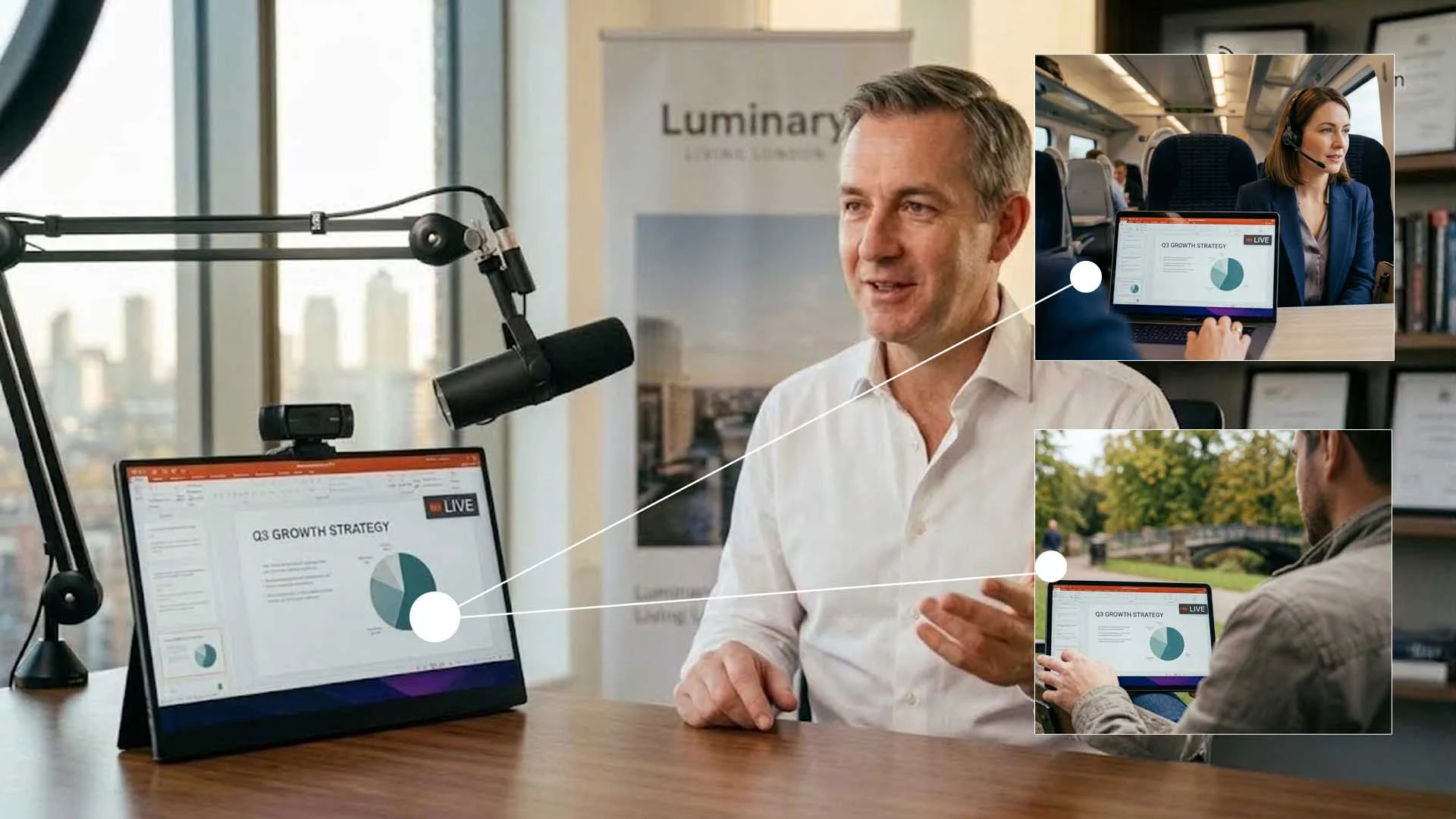
Practical tip: Send the presentation link before the meeting and include it in the calendar invitation, so participants can join with minimal friction.
12. Highlight important content in real time
When a presentation contains a complex image, plan or chart, it is not always obvious where the audience should look.
A real-time highlight or visual pulse can guide their attention without covering the content with a cursor, annotation or large graphic. For example, the presenter could highlight:
- A particular figure in a table
- One area of a floor plan
- A product component
- A phrase in a proposal
- A point on a map
- A change between two designs
This creates a subtle form of interaction between the presenter and the content. The presentation responds to what is being discussed at that moment.
Practical tip: Use highlighting sparingly. If everything is emphasised, nothing feels important.
13. Use live polls to guide the conversation
Polls are among the most familiar interactive presentation ideas, but they are most effective when the answer changes what happens next.
Instead of asking a decorative question, use a poll to understand the audience. For example:
- Which objective is most important to your team?
- What is the biggest obstacle in your current process?
- Which option should we explore first?
- Where do you see the greatest implementation risk?
- How confident are you in the current approach?
The results can help the presenter decide what to discuss in more detail.
Polls are useful in discovery sessions, workshops, internal presentations and meetings involving a large number of participants.
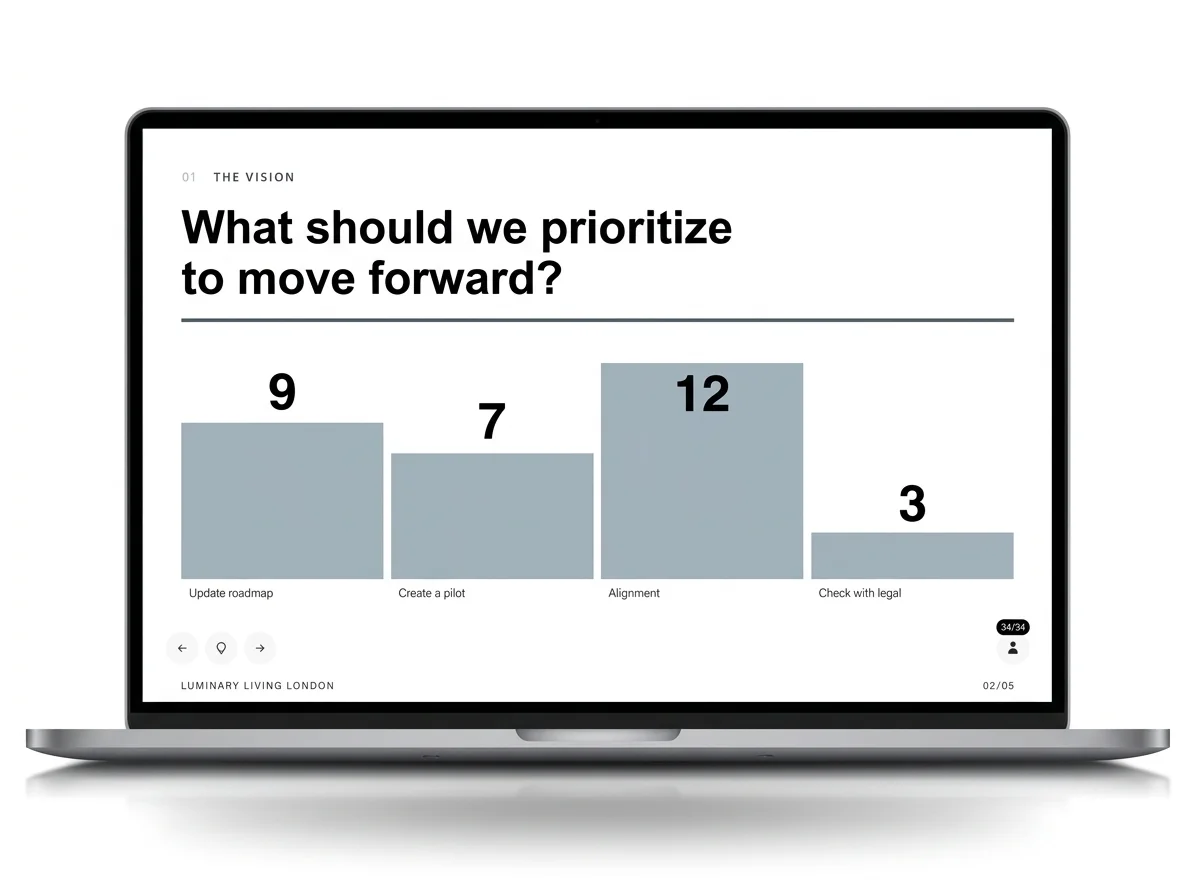
Practical tip: Tell the audience what you will do with the result. Participation feels more worthwhile when it has a visible effect on the discussion.
14. Turn the presentation into an always-current leave-behind
First, the presenter delivers the deck during a meeting. Then, a PDF copy is emailed afterwards.
This creates several problems. The PDF may lose video, animation, 3D content and other interactive elements. It may be too large to send. It can quickly become outdated. It may also be forwarded without context.
An interactive presentation can use the same link during and after the meeting.
The recipient can revisit the full experience, and the publisher can update the content without creating and distributing another version.
This is useful when:
- A decision involves several stakeholders
- The presentation will be shared internally
- Information may change
- The sales process is long
- Supporting material needs to remain accessible
- The recipient is unlikely to remember every detail from the meeting
A persistent link also creates continuity. The live presentation and the leave-behind are no longer two separate assets.
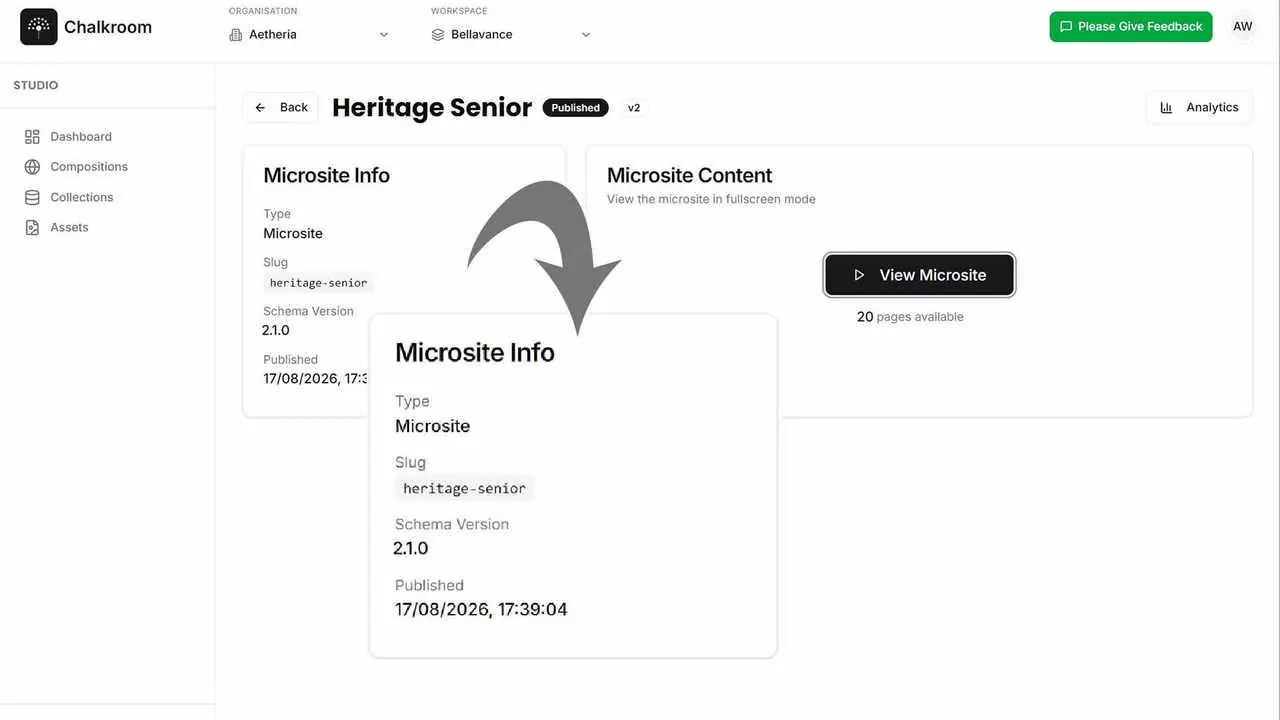
Practical tip: Add a clear contents page and next step before sharing the presentation for independent viewing.
15. Use engagement analytics to improve the follow-up
A traditional attachment tells you whether an email was sent. It rarely tells you what happened to the presentation afterwards.
Content engagement analytics can reveal which areas of a presentation attracted attention. Depending on the platform and settings, this might include:
- Which pages were viewed
- How long viewers spent with different content
- Which sections were revisited
- Whether the presentation was opened again
- Which interactive elements received attention
- How engagement changed over time
These signals can help make follow-up more relevant. For example:
- If a prospect revisits the pricing section, commercial questions may still be unresolved.
- If several people view the implementation content, it may be useful to arrange a technical session.
- If one case study receives strong engagement, send a related example.
- If a viewer returns to the presentation after several days, the opportunity may have become active again.
Analytics should be treated as evidence of content engagement, not proof of buying intent. Someone spending a long time on a page does not necessarily mean they agree with it.
Used thoughtfully, however, analytics can replace generic follow-up with a better-informed conversation.
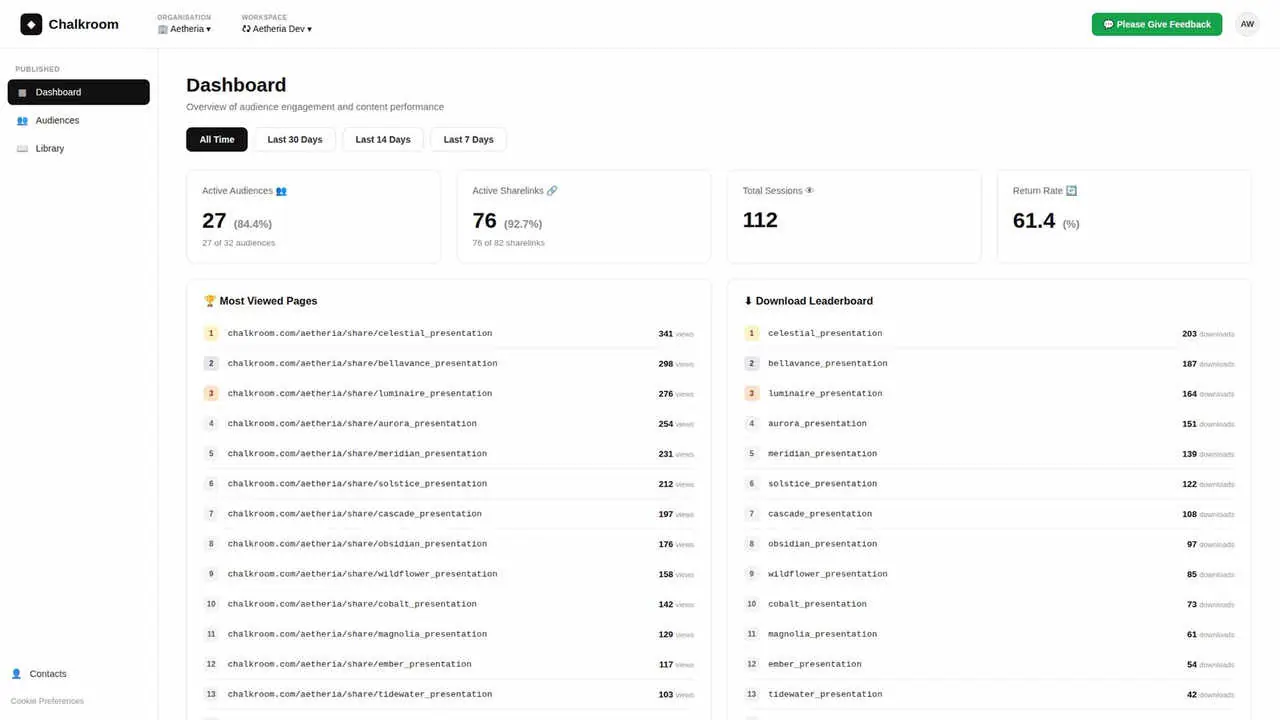
Practical tip: Decide in advance what action different engagement signals might trigger. Data is only useful when it changes what you do.
Make your next presentation interactive
The strongest presentations do not simply place information in front of an audience.
They help people understand complex ideas, investigate what matters to them, ask better questions and continue the conversation after the meeting. It requires choosing the right moments to give the audience greater clarity, control and context.
With Chalkroom, presentations can be experienced rather than simply sent.